

You can update your campaign settings if you need to make changes after creating a campaign.
Some settings can still be modified while the campaign is active, while others may be locked to prevent issues with existing customer progress.
How to Edit a Campaign
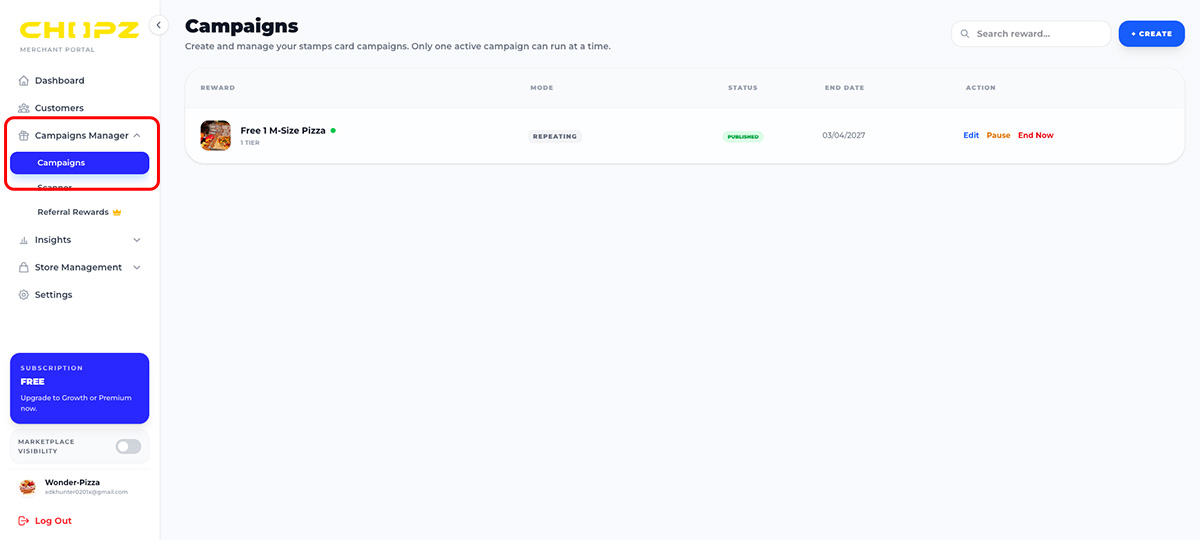
Step 1
Go to Campaign Manager in your Merchant Dashboard.
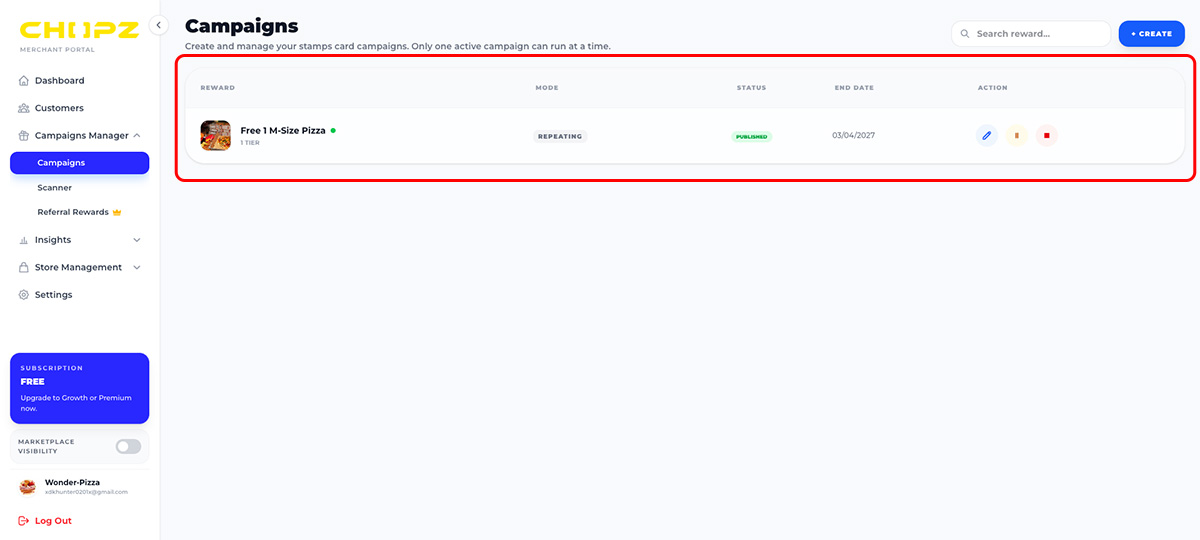
Step 2
Select the campaign you want to update.
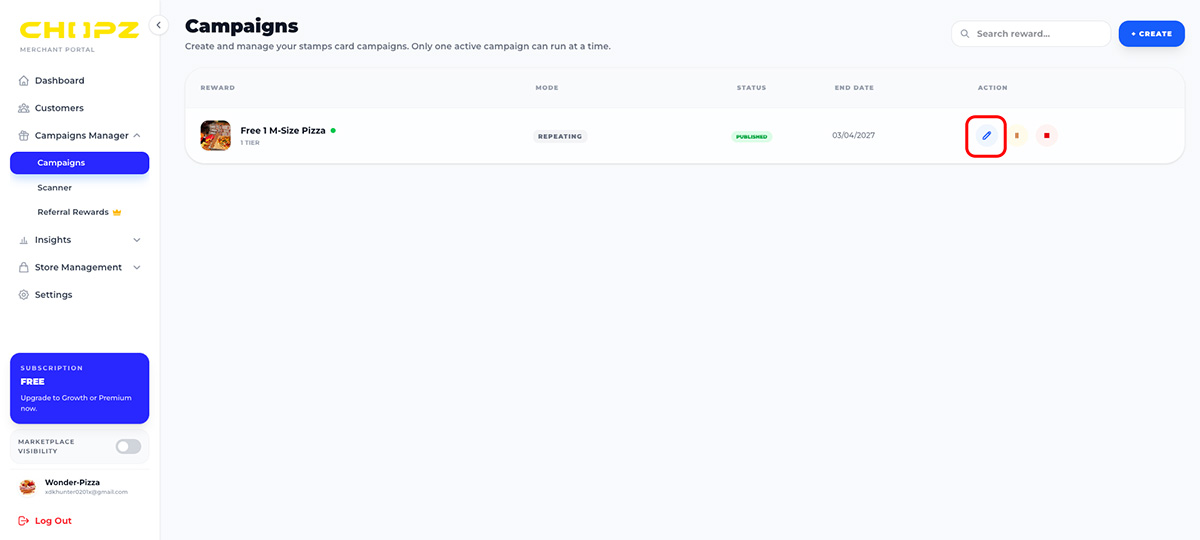
Step 3
Click Edit Campaign.
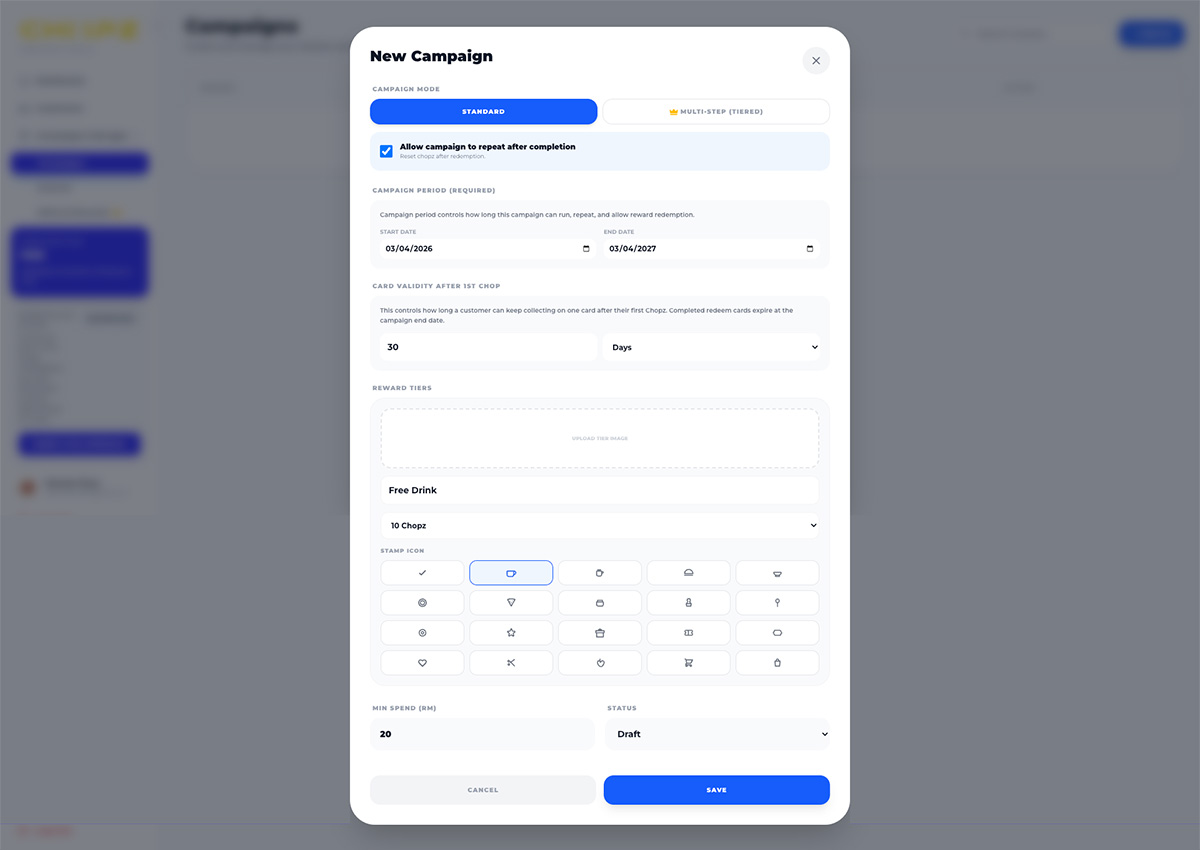
Step 4
Update the campaign settings as needed.
Campaign Settings You Can Edit
Depending on the campaign status, you may be able to update the following settings:
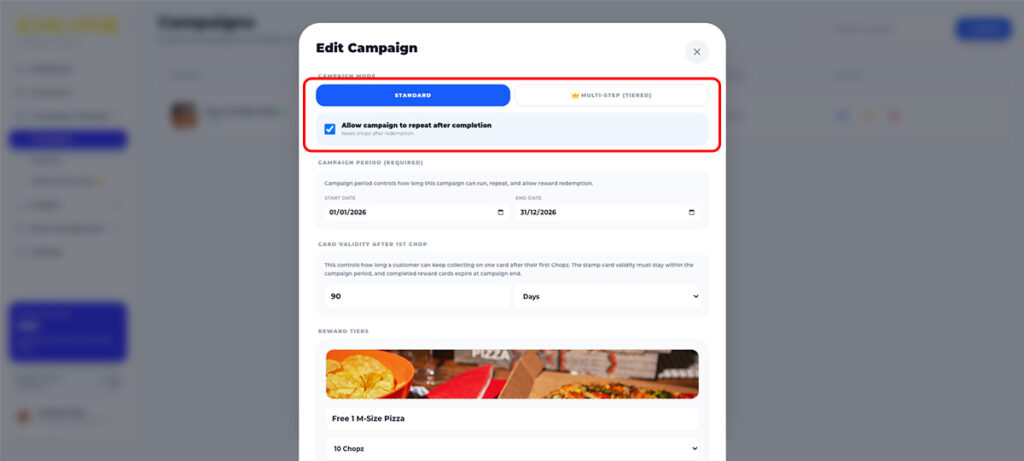
Reward Repeat Card
Enable this option if you want the reward card to restart automatically after a customer completes it.
Example:
Collect 8 Chopz → Free drink → Card resets so the customer can start collecting again.
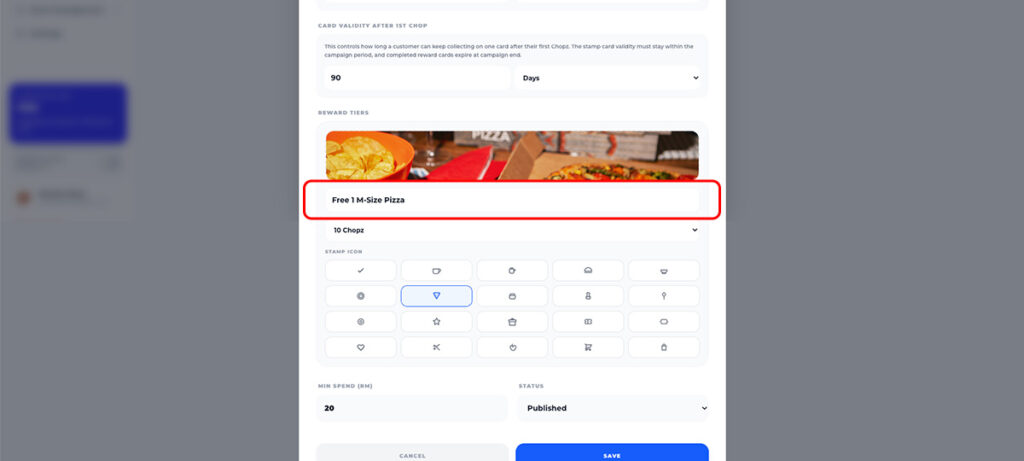
Reward Name
Edit the name of the reward shown to customers.
Example:
• Free Coffee
• Free Dessert
• 10% Discount
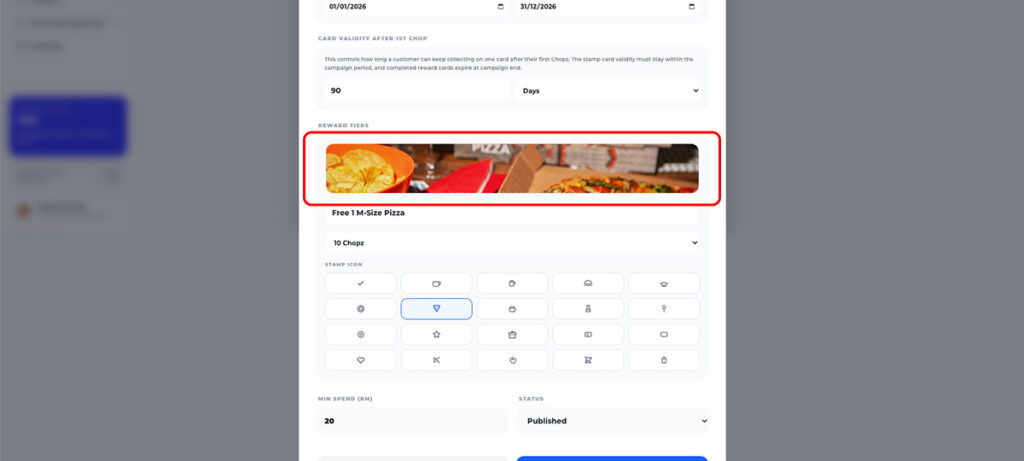
Reward Image
Upload or update the image used to represent the reward on the campaign card.
A clear reward image helps customers easily understand what they can redeem.
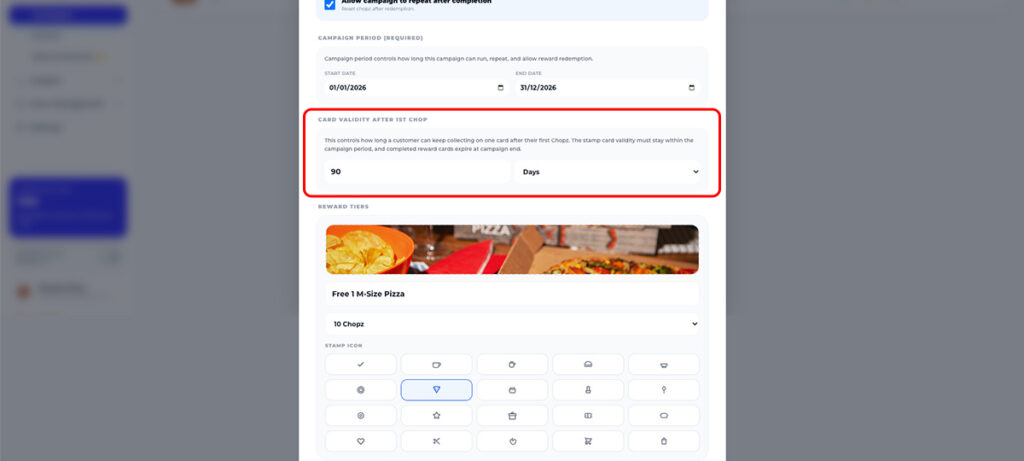
Card Validity (From First Chopz)
You can set how long a customer has to complete the card after collecting their first Chopz.
Example:
Collect 8 Chopz within 90 days
If the card is not completed before the validity period ends, the card may expire.
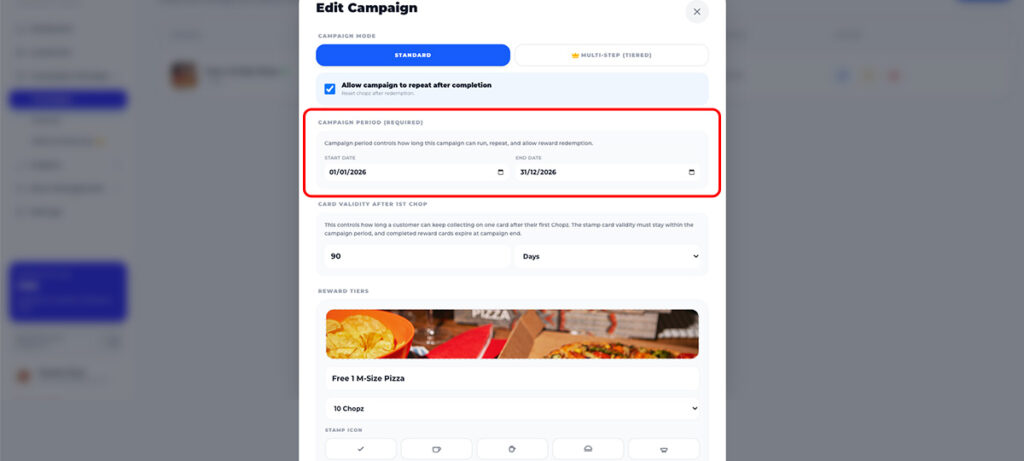
Campaign Period
Define how long the campaign will run.
Example:
• Start Date → 1 January
• End Date → 31 December
Customers can only collect Chopz while the campaign is active.
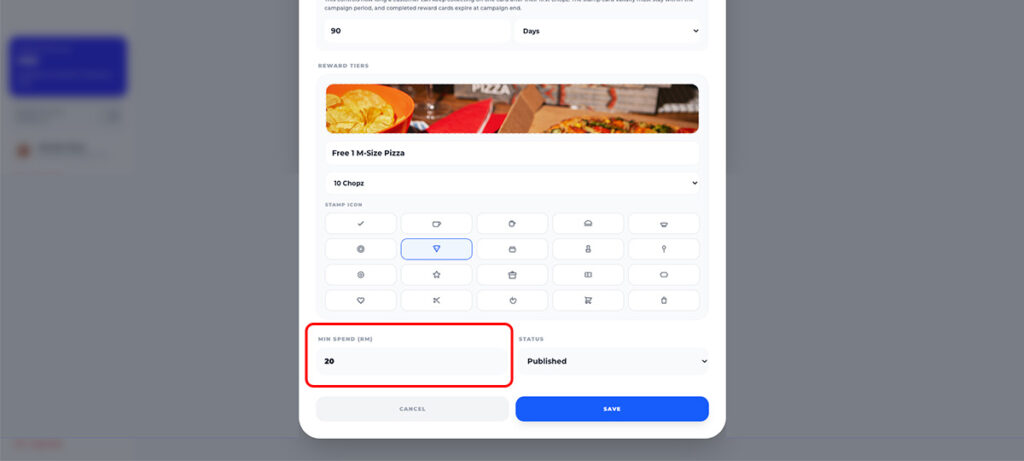
Reward Minimum Spend
You can require customers to spend a minimum amount before issuing a Chopz.
Example:
Minimum spend: RM10
This helps ensure Chopz are given only after qualifying purchases.
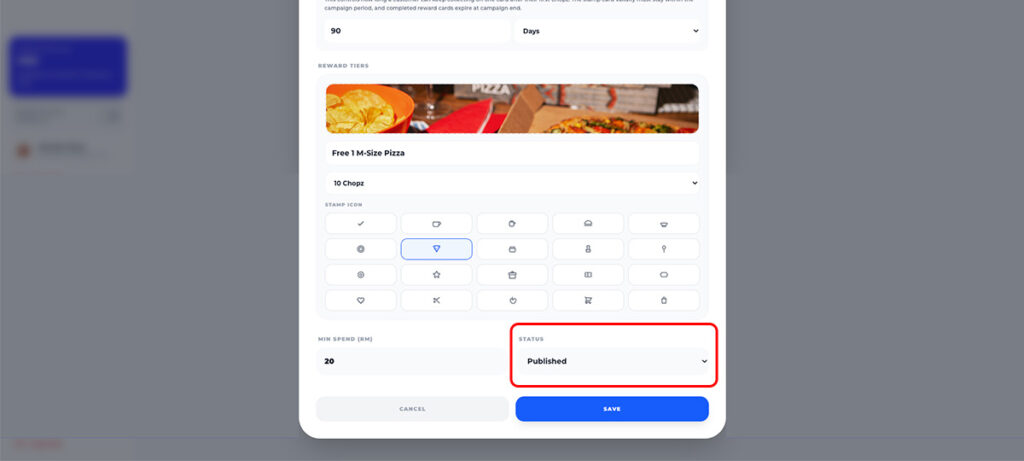
Campaign Visibility
Control whether your campaign is visible to customers.
Options may include:
Important Notes
Some campaign settings may be locked once the campaign becomes active. This is to prevent conflicts with customers who have already started collecting Chopz.
If you need to make major changes, you may need to: